
FAQ | DJI Pocket 4 - answers to frequently asked questions

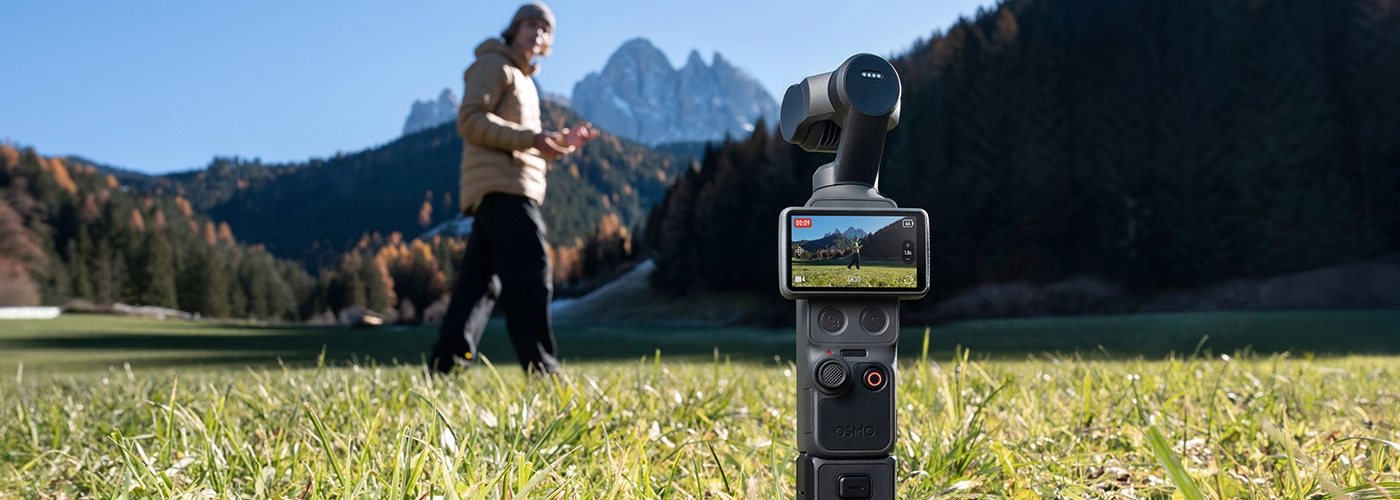
What are the functions of the two new physical buttons on the DJI Osmo Pocket 4?
The Osmo Pocket 4 features two new physical buttons below the touchscreen: a Zoom button and a Custom button.
Zoom Button: A single press allows you to switch between 1× and 2× zoom.If the current zoom is 1×, pressing will change it to 2×.If a different zoom value is set, pressing will return the zoom to 1×.Double-press to switch to 4× zoom.
Custom button: Press and hold to activate selected custom functions (presets).The options available are m.in.: switch gimbal modes (Switch Gimbal Mode), change Photo/Video mode, Quick Capture, switch between C1/C2 profiles, Quick Capture in C1 mode, rotate gimbal, restore gimbal to home position (Recenter), enable/disable gimbal lock, control auxiliary lighting (Fill Light), and switch between Follow/FPV modes.
What is the use of the new Subject Management feature in Pocket 4?
In Subject Management, you can register and manage up to three subjects (they can be the same person, if necessary).Once registration is complete, you can enable the Registered Subjects Only gesture control option.When Registered Subject Priority focus mode is enabled, the Osmo Pocket 4 prioritizes focusing on the registered subject.When Spotlight Follow mode is active, the Osmo Pocket 4 instantly tracks the captured subject.
How long can you record on the built-in memory of the Osmo Pocket 4?
Osmo Pocket 4 has 107 GB of built-in memory.At standard bitrate, this will allow for about 600 minutes of 1080p/24fps footage or about 220 minutes at 4K/60fps.
What is the effective range of gesture control and object tracking on the Osmo Pocket 4?
Effective range of gesture control:
- 1× zoom: from 0.5 m to 5 m
- 2× zoom: from 1 m to 7 m
Effective object tracking range:
- 1× zoom: up to 10 m
What is the shortest distance you can film from with the Osmo Pocket 4?
The minimum distance from the object is 20 cm.
What Timelapse modes are available on the Osmo Pocket 4 and what parameters can be set in them?
Three modes are available: Hyperlapse, Timelapse and Motionlapse:
- In Hyperlapse mode, you can set the resolution, frame rate and speed of the.
- In Timelapse mode, you can set resolution, frame rate, interval and duration.
- In Motionlapse mode, you can set the resolution, frame rate, interval, duration and waypoints.
When recording timelapse on Osmo Pocket 4, can I save individual images?
Photos can be saved in Timelapse and Motionlapse modes, but this function is not available in Hyperlapse mode.By default, only video files are saved in Timelapse and Motionlapse modes.To save photos as well, change the settings in Pro mode.In Pro mode, you can set the recording format to Video + JPEG or Video + RAW, allowing you to preserve both individual photos and the finished timelapse movie.
What is the D-Log color profile in Osmo Pocket 4?
D-Log is designed to capture the wide dynamic range of the sensor.Colors are evenly distributed, so that both light and dark parts of the recording retain greater fidelity and detail.It is not a finished LUT (color transformation table), but an image with reduced contrast and a flat color profile, which provides much more possibilities in post-production.
Where the Osmo Pocket 4 stores recorded footage?
Materials can be stored in the device's built-in memory or on a microSD card.
What focus modes the Osmo Pocket 4 offers?
Available modes are: Single, Continuous, Product Showcase, Subject Lock Tracking and Registered Subject Priority.
What are the main differences between the Osmo Pocket 4 and the Osmo Pocket 3?
Osmo Pocket 4 makes significant improvements in image quality, smart recording features and user experience compared to DJI Osmo Pocket 3.Major improvements include:
1.Higher image quality:
- The Osmo Pocket 4 features an advanced 1" CMOS sensor that can record impressive 4K/240 fps footage [1], crisp night shots and detail-saturated landscapes.With a 14-degree dynamic range [2] and 10-bit DLog color profile [3] the camera delivers cinematic depth and rich detail in every frame
- Beautify function [4], which is available directly on the camera, allows you to adjust smoothness, brightness and skin tone.You can also choose from a variety of Film Tone modes [4], to give your recordings a classic aesthetic and achieve a cinematic image right from the recording stage, or use additional lighting or the Black Mist filter [5], for even better effects.
2.Smarter Recording:
- Osmo Pocket 4 supports ActiveTrack 7.0 technology, which can track objects at up to 4x zoom [6].The system recognizes and maintains focus on various types of objects - from people, cars and motorcycles to animals (cats, dogs) and static objects.
- The new Gesture Control feature [7] allows you to control recording, take photos and activate ActiveTrack mode with simple gestures, making it easier for self-shooting creators.
- Intelligent autofocus takes care of the sharpness of filmed objects.Subject Lock Tracking [8] allows you to automatically track the selected target - just touch the detection frame on the screen to change the focus point.Registered Subject Priority mode [8], on the other hand, gives focus priority to previously registered subjects.
3.More convenient operation:
- Two new buttons below the touchscreen improve operation you can use them to instantly change the zoom or assign your favorite functions to them.
- 107 GB of built-in memory, Wi-Fi 6 connectivity and data transfer via USB-C cable (USB 3.1) at up to 800 MB/s guarantee efficient file management.
- The 5D's joystick allows infinite adjustment of the gimbal's panning speed and zoom for greater flexibility in working with the camera.
- New accessories support every type of creativity - from lighting and sound recording, to solutions that extend runtime and make it easier to transport.
- Recording in 4K/240fps is only possible in Slow Motion mode.
- The maximum dynamic range is 14 degrees in both Normal and D-Log profiles.In Slow Motion mode, the actual dynamic range may be lower.
- 10-bit D-Log color profile can only be activated in standard video mode.
- Film Tone and Beautify features are only available in Video mode and cannot be used simultaneously.Activating Film Tone blocks access to Beautify features.If Beautify is already enabled, selecting Film Tone will automatically disable it.
- Accessories are sold separately or as part of a kit.
- ActiveTrack does not work in Panorama, Timelapse, Motionlapse and SpinShot modes, as well as when the gimbal is operating in FPV mode with the device in landscape orientation.For tracking to work best, make sure you have good lighting.ActiveTrack feature updates are available from DJI Mimo.
- Effective range of gesture control is 0.5 to 5 m (1× zoom) and 1 to 7 m (2× zoom).To control recording or ActiveTrack, use specific gestures (open palm or V sign) and do not cover your face with your hand.Coverage may change with software updates.
- Subject Lock Tracking and Registered Subject Priority features are available in Video, Photo Pro and Hyperlapse modes.They cannot be used in Panorama, Timelapse and Motionlapse modes.
How to enable and disable ActiveTrack on the Osmo Pocket 4?
- Double-tap the selected object on the screen to launch ActiveTrack.You disable the function by pressing the joystick once or by touching the display outside the tracking frame.
- In DJI Mimo, select an object in the frame to launch ActiveTrack.To stop tracking, tap the "×" icon in the upper-right corner of the frame.
- ActiveTrack is not available in Panorama, Timelapse and Motionlapse modes.
How to switch between horizontal and vertical recording on the Osmo Pocket 4?
By default, the horizontal or vertical recording mode changes automatically as the screen rotates.To adjust this setting, go to the menu and select Landscape, Portrait or Auto-Rotation.Once recording starts, the image orientation is locked and cannot be changed.
What recording parameters can be set in Pro mode on the Osmo Pocket 4?
- Photo: Exposure, WB, Format, Focus Mode.
- Video: Exposure, WB, App Glamour Effects, Beautify, Color, Film Tone, Focus Mode, Breathing Compensation, Image Adjustment, Channel, Wind Noise Reduction, Directional Audio, Vocal Boost.
- Low-Light: Exposure, WB, App Glamour Effects, Focus Mode, Breathing Compensation, Channel, Wind Noise Reduction, Directional Audio, Vocal Boost.
- Slow Motion: Exposure, WB, Film Tone, Focus Mode, Image Adjustment, Channel, Wind Noise Reduction, Directional Audio, Vocal Boost.
- Timelapse: Exposure, WB, Format, Focus Mode.
What video formats are supported by DJI Osmo Pocket 4?
DJI Osmo Pocket 4 supports MP4 (HEVC) video format.
What's the running time DJI Osmo Pocket 4?
Operating time DJI Osmo Pocket 4 lasts up to 240 minutes.*
*Tested at room temperature of 25°C, recording at 1080p/24fps (16:9), with Wi-Fi off and screen off.This data is for reference only.
Does DJI Osmo Pocket 4 support fast charging?
Yes - the battery can be charged to 80% in 18 minutes and to 100% in 32 minutes.*
*Tested under laboratory conditions using portable charger DJI 65W (sold separately).
Can I use DJI Osmo Pocket 4 to charge my phone?
No, DJI Osmo Pocket 4 does not support phone charging.
Can you use DJI Osmo Pocket 4 while charging?
Yes, however, we recommend using the device after it is fully charged.During operation, the Osmo Pocket 4 draws power directly from the power source, and battery charging only begins when recording stops.
What app can I use to control the Osmo Pocket 4 with my smartphone?
The DJI Mimo app lets you sync photos and videos, edit them and share them.
How to activate the Osmo Pocket 4?
To activate the device, follow these steps:
- Download the DJI Mimo app by scanning the QR code displayed on the camera screen or by finding it in the app store.
- Press the Shutter button or rotate the screen to turn on the camera.
- Turn on Wi-Fi and Bluetooth on your mobile device.
- Launch DJI Mimo, then tap the camera icon on the home screen to connect to the device.Follow the on-screen instructions.
- When you connect the Osmo Pocket 4 to the DJI Mimo app, you will see a message to activate it.Complete the process by following the directions in the application.To see what the activation process looks like, you can use the video, available on the manufacturer's website.
How to connect the Osmo Pocket 4 to a smartphone?
- Enable Wi-Fi and Bluetooth to connect the Osmo Pocket 4 to the DJI Mimo app and access device control, software updates and content export.
- In the Osmo Pocket 4's system settings, select USB Mode, then connect the camera to an OTG-enabled smartphone using a USB-C to USB-C (USB 3.1) cable to export files.
How to connect DJI Osmo Pocket 4 to your computer?How to export photos and videos from the Osmo Pocket 4?
Connect DJI Osmo Pocket 4 to your computer with a USB-C (USB 3.1) cable to transfer files or use the camera in webcam mode.
- Connect to DJI Mimo app and download selected content to your smartphone.
- Remove the microSD card from DJI Osmo Pocket 4 and insert it into the computer.
- Connect the camera to an OTG-enabled computer or smartphone using a USB-C cable (USB3.1).
When DJI Osmo Pocket 4 splits the recording into separate files?
Osmo Pocket 4 will automatically split the recording when it reaches 16 GB in size.This process is done without losing the quality of the material.
Is the App Glamour Effects feature available in both photo and video modes?
App Glamour Effects feature is only available in Video and Low-Light modes.It cannot be used in Photo mode or other recording modes.Turn on the Glamour Effects app in the Osmo Pocket 4 before you start recording.When finished, export the footage using DJI Mimo, where you can apply beauty effects and adjust their parameters before saving the file.App Glamour Effects supports video up to 4K/60fps resolution.Note, however, that due to processor performance, some smartphone models only allow the export of footage in 1080p/30fps quality.
Is the built-in Beautify function available in both photo and video modes?
The built-in Beautify feature is only available in Video mode.It cannot be used in Photo mode or other recording modes.Once it is turned on, you can adjust the smoothing intensity, brightness and skin tone according to your preferences.Film Tone and Beautify functions cannot be used simultaneously.Activating Film Tone blocks access to Beautify features.If Beautify is already active, selecting Film Tone will automatically disable it.
Does the Osmo Pocket 4 allow for slow motion video recording?
Yes, the camera supports up to 4K/240 fps recording for an 8× slow motion effect.
How to export panoramas taken with Osmo Pocket 4?
Osmo Pocket 4 supports automatic panorama merging directly on the device.You can connect to the DJI Mimo app and go to the playback view to download finished photos to your smartphone, or export them to your computer from a microSD card.
Does the Osmo Pocket 4 support adjusting the audio gain (gain)?
The Osmo Pocket 4's built-in microphone automatically adjusts the audio gain depending on the zoom level, but does not allow manual adjustment of these settings.When the Osmo Pocket 4 is connected to DJI Mic 3, DJI Mic 2, DJI Mic Mini or an external third-party audio device, it is possible to manually adjust the audio gain.
Does the Osmo Pocket 4 support live streaming?What platforms are supported?
Yes, the camera supports the most popular livestreaming platforms.
Does the Osmo Pocket 4 support recording with the screen off?
Yes.Swipe down on the screen to open the menu, then go to system settings and select the time under Scrn Off When Rec.You can set: 3 s, 15 s, 30 s, 1 min, 5 min, 10 min or never.
How to use the Audio Zoom feature of the Osmo Pocket 4?
Audio Zoom is enabled by default and activates automatically as the zoom level (zoom) changes.
Can I use the Osmo Pocket 4's USB-C port to transfer real-time video using an HDMI cable?
No, it is not possible to transmit real-time video via HDMI cable.
Is the 1-inch sensor in the Osmo Pocket 4 the same as in the Osmo Pocket 3?
Not.Osmo Pocket 4 features an all-new 1-inch stacked CMOS sensor.It can record at up to 4K/240 fps without crop (only available in Slow Motion mode) and supports Full-Pixel PDAF technology, resulting in higher performance and better image quality.
What should I do if I can't connect to the DJI Mimo app??
Try the following steps:
- Make sure Bluetooth and Wi-Fi are enabled on your smartphone.
- Restart the Osmo Pocket 4 and the app, then try connecting again.
- If the Wi-Fi password on your Osmo Pocket 4 has been changed, turn off and re-enable Wi-Fi on your smartphone, then try connecting again.
- If your smartphone does not support the 5.8 GHz band or you are in a location where it is unavailable, go to the settings on the Osmo Pocket 4, select Wireless Connection, enter Wi-Fi Frequency and change the band to 2.4 GHz.Then try connecting again.
How to adjust the stabilization level on DJI Osmo Pocket 4?
Manual adjustment of stabilization level is not supported.Instead, you can use the gimbal's 4 modes (e.g., Tilt Locked or FPV) and 3 rotation speeds (Slow, Medium, Fast) to tailor the camera's movement to the scene you're recording.
How to control the direction of rotation of the gimbal on the Osmo Pocket 4?
You can control the direction of rotation of the gimbal in two ways:
- Directly from the Osmo Pocket 4: When the slider on the home screen displays the zoom degree (zoom), use the joystick to control the tilt (tilt) and pan (pan) axes.When the slider displays only arrow icons (no numerical values), move the slider up or down to control the tilt (tilt) axis, and move the joystick left or right to control the pan (pan) axis.
- In the app DJI Mimo: Go into the camera preview in the app and use the virtual joystick to control the tilt and pan axes.
Where are the microphones on the Osmo Pocket 4?Do they support directional audio?
Osmo Pocket 4 has three microphones - one on each wall of the case (except the one with the screen).When Pro mode is off, Directional Audio defaults to All.When you turn on Pro mode, you can manually switch between settings: Front, Front and Back and All.
How much the battery grip extends DJI Osmo Pocket 4's runtime?
When recording in 1080p/24fps quality, Pocket 4 can run up to 240 minutes on a single charge.When a fully charged battery holder is connected, this time can be extended by an additional 150 minutes.*
*Tested at room temperature of 25°C, recording at 1080p/24fps (16:9), with Wi-Fi off and screen off.
Can I use the battery holder to charge my phone?
No, the battery holder does not support phone charging.
How to connect Osmo Pocket 4 with DJI Mic 3/Mic 2/Mic Mini?
Swipe down on the screen to open the menu.Go to system settings, select wireless microphone option and activate pairing mode (linking mode).Follow the on-screen instructions to put the DJI Mic 3/Mic 2/Mic Mini transmitter into pairing mode.After a successful connection, return to the home screen - the volume level bar will be displayed at the top.After the first pairing, the devices will automatically connect every time they are turned on again.
Does the Osmo Pocket 4 support connection to two transmitters DJI Mic 3/Mic 2/Mic Mini simultaneously?
Yes.
Does the Osmo Pocket 4 support connection to DJI Mic?
Osmo Pocket 4 does not support direct connection to DJI Mic (first generation).To use it, it is necessary to connect the DJI Mic Receiver to the camera's USB-C port.
Are accessories for the Osmo Pocket 4 compatible with the Osmo Pocket 3?
Accessories designed for Osmo Pocket 3 can be used with Osmo Pocket 4.However, new accessories dedicated exclusively to the Osmo Pocket 4, such as additional lighting or a gimbal lock, are not compatible with the Osmo Pocket 3 model.
What are the functions of the Osmo Pocket 4 mount with 1/4″ threads?
- Allows mounting on tripod with 1/4″ thread.
- Moves the USB-C port to the back of the case, making it easier to record while charging, such as when the camera is on a surface.
- Lengthens the entire device, making the camera fit more securely in the hand.
How to mount and detach a 1/4″ threaded bracket or a battery holder?
Putting on: No need to press the front release button.Fit the accessory into the USB-C port, slide it in and make sure the latches on both sides are locked in place.
Removal: Press the front release button and slide out the handle.
Do you have to use a protective case or bag for the Osmo Pocket 4 every time?
The Osmo Pocket 4 camera features a locking gimbal axis, so you can safely carry it in your pocket or small bag during everyday use.However, avoid pressure from hard objects during storage.When transported in a larger bag, such as a backpack or cloth bag, it is recommended to use a case for extra protection.
How to mount the expansion adapter to the Osmo Pocket 4?
Open the adapter, fit it to the edge of the case at the height of the joystick and put it on the device.Before fastening the adapter buckle, make sure it is in the correct position and allows the screen to rotate freely.
What accessories are compatible with the Osmo Pocket 4?
Osmo Pocket 4 works with the following accessories: 1/4″ threaded handle, battery grip, DJI Mic 3 transmitter, wide angle lens, Mini Tripod, Black Mist filter, expansion adapter, set of magnetic ND filters, carrying bag, protective cover, USB-C to USB-C PD (USB 3.1) cable, additional lighting, and gimbal holder.Some accessories are sold separately or as part of a kit.
Whether the USB-C port on the 1/4″ threaded mount and the battery pack mount supports data transfer?What cable standard is required and what is the maximum speed?
Yes, both ports support data transfer.Using the included USB-C to USB-C PD (USB 3.1) cable or any other USB 3.1-compatible cable, you can transfer data from the built-in memory at a maximum speed of up to 800 MB/sec.
What is the power consumption of additional lighting for Osmo Pocket 4?How its installation affects the working time of the camera?
- Medium brightness: Additional lighting draws 0.35 watts.Operating time with 1080p/24fps recording is up to 210 minutes* (reduced by about 30 minutes).
- High brightness: Additional lighting draws 0.55 watts.Running time for 1080p/24fps recording is up to 186 minutes* (reduced by about 54 minutes).Without additional lighting: Operating time with 1080p/24fps recording is up to 240 minutes.*
*Tested at room temperature of 25°C, at 1080p/24fps settings (16:9), with Wi-Fi off and screen off.Data is for reference only.
What are the maximum transfer speeds when exporting material from the built-in memory and microSD card?
From built-in memory (via USB-C cable): Up to 800 MB/s when connected to an OTG-enabled computer or smartphone, provided a USB-C to USB-C PD (USB 3.1) or other USB 3.1-compatible cable is used.
From built-in memory (via Wi-Fi): Up to 90 MB/s.From microSD card: The speed depends on the performance of the card itself and the transfer method.Using a high-speed microSD card, transfer over Wi-Fi can reach up to 90 MB/s.
How to update the software (firmware) on the Osmo Pocket 4?
The DJI Mimo application will automatically send a notification when a new software version is available.Follow the displayed instructions to complete the update.
How to manually set shutter speed, ISO and other camera parameters?
- Swipe left on the Osmo Pocket 4's screen, tap the PRO icon in the upper right corner to enable Pro mode, and then select Exposure - M (manual mode) to adjust the shutter speed and ISO.
- Launch DJI Mimo, tap AUTO in the upper right corner of the camera preview, and then tap M (manual mode) to set parameters.
Can I use an external microphone with the Osmo Pocket 4?
Yes.You can connect the Osmo Pocket 4 to an external third-party microphone using digital signals through the USB-C port or by using a 3.5mm port adapter.
Can I adjust the playback volume on the Osmo Pocket 4?
Yes.In the playback interface, tap the speaker icon in the upper-right corner and move the volume slider to adjust the sound level of the video being played.
What channels are covered by the OsmoAudio four-channel output on the Osmo Pocket 4?Which are the internal channels?
For Osmo Pocket 4, OsmoAudio supports the following four output channels: Two channels from transmitters DJI Mic 2 / Mic 3 / Mic Mini.Two channels (left and right) from the camera's built-in microphone chip.Internal dual channels are responsible for recording stereo sound from the built-in microphone array.
What is surround sound supported by Osmo Pocket 4?How it differs from stereo sound?
Surround sound simulates a real listening environment, creating an immersive experience when using the headphones.It distinguishes sound sources coming from different distances and directions, providing a richer soundstage, more precise sound localization and a greater sense of immersion.In contrast, stereo sound is mainly limited to left-right sound imaging, offering less spatial depth and less positioning accuracy.
How the backup audio track from the Osmo Pocket 4's built-in microphones works?
Osmo Pocket 4 supports connecting two transmitters to record audio.When at least one DJI Mic transmitter is connected, recorded video files automatically contain two audio tracks with a total of four channels:
Audio Track 1 (Transmitter Sound): With 1 transmitter DJI Mic: The left and right channels record the same sound from the transmitter.With 2 transmitters DJI Mic: Left and right channel record audio from two transmitters separately (e.g. left for transmitter 1, right for transmitter 2).
Audio track 2 (Built-in stereo): This track records the left and right channels from the camera's built-in microphone chip.It is synchronized in the video file and is usually used to record ambient sounds.When no DJI Mic transmitter is connected, video plays audio from camera's built-in microphone.When the DJI Mic transmitter is connected, the default sound during playback is the one recorded by the transmitter.
What are the supported video parameters of the Osmo Pocket 4 when using it as a webcam and what do the different parameters mean on the screen and in the swipe-up menu?
Output specifications:
- 1920×1080@24/25/30fps
- 1080×1920@24/25/30fps
- 3840×2160@24/25/30fps
- 1728×3072@24/25/30fps
Specifications for internal recording:
- 1920×1080@24/25/30/48/50/60fps
- 1080×1920@24/25/30/48/50/60fps
- 3840×2160@24/25/30/48/50/60fps
- 1728×3072@24/25/30/48/50/60fps
The parameters at the bottom of the screen, such as "Webcam (1080P30)" or "(1080P60)," indicate the currently selected resolution and frame rate for internal recording.The values 24/25/30/48/50/60 in the flyout menu are the available options for writing to the card - you can choose a value equal to the one on the output or double it.
Can I replace the lens on the Osmo Pocket 4?
No, DJI Osmo Pocket 4 does not have the ability to replace the lens.
Can DJI Osmo Pocket 4 connect via Bluetooth or Wi-Fi?
Yes, Osmo Pocket 4 can connect via Bluetooth or Wi-Fi.
Is the Pocket 4 camera waterproof?
No, DJI Osmo Pocket 4 is not woodproof.