How do I connect my drone to my phone and Wi-Fi?
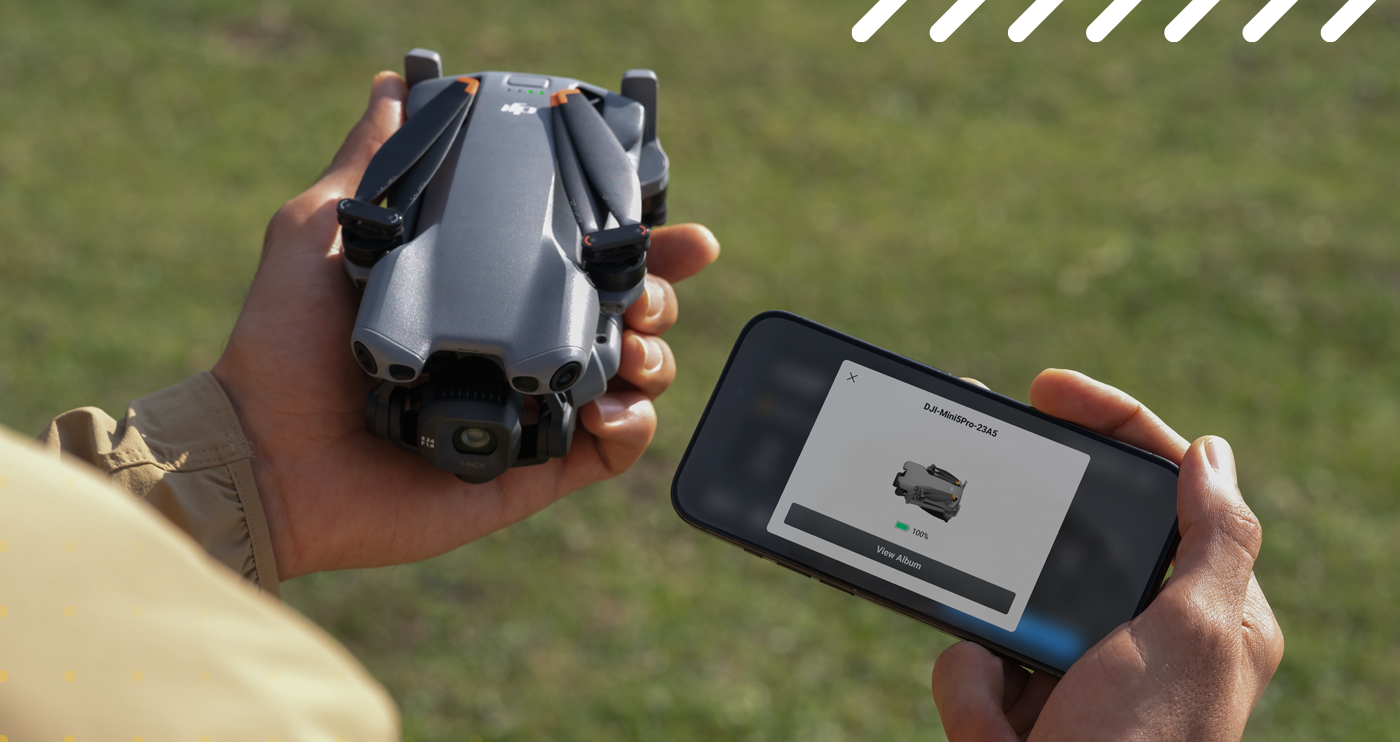
To control a drone you need either a suitable device (controller) or a connection to a smartphone app. In many popular models, flight control is handled through a dedicated app. This, in turn, most often uses a combination of Wi-Fi, mobile, and GPS connectivity. How to Set Up a Drone's Connection to a Wi-Fi Network and the Manufacturer's App?
Connecting a drone to a phone. Step-by-Step Guide
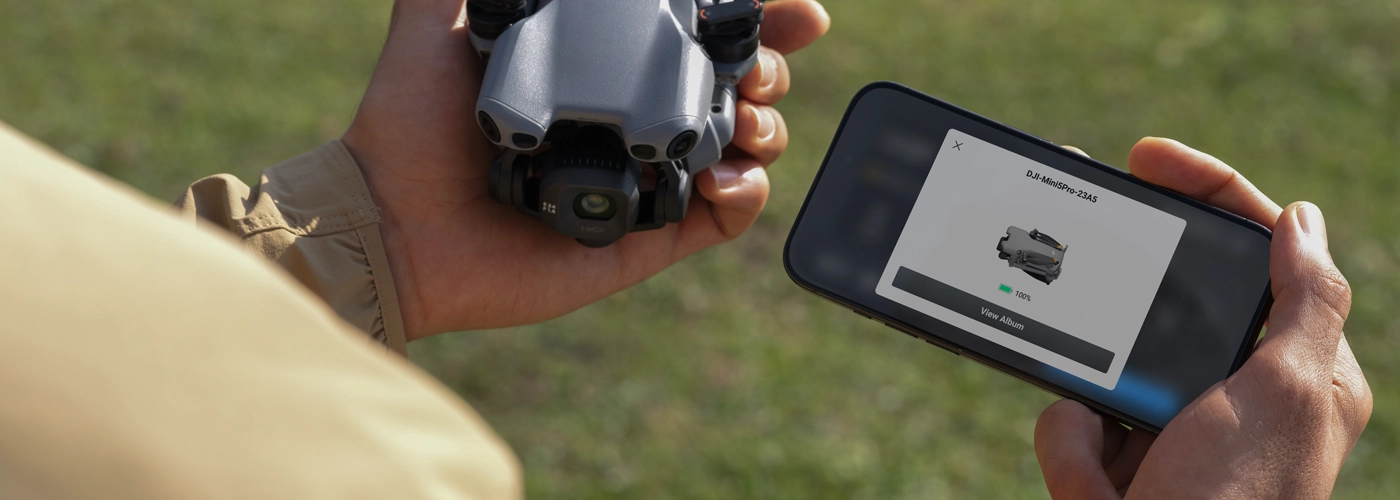
How to Connect a Drone to Your Phone? The specific steps may vary depending on your drone model—but the general process is similar. Before attempting to connect, make sure you've taken care of the basics: charge the batteries, prepare the device (smartphone or dedicated controller), and read the manufacturer's instructions. Here are the general steps that can be followed for most models:
Make sure the equipment is complete and stable. Install the propellers and other components, if necessary; turn on the drone and the controller. At this stage, it’s also a good idea to familiarize yourself with the formal requirements for the flight itself—currently, registration of both the drone and the operator is mandatory for drones weighing both under and over 250 g.
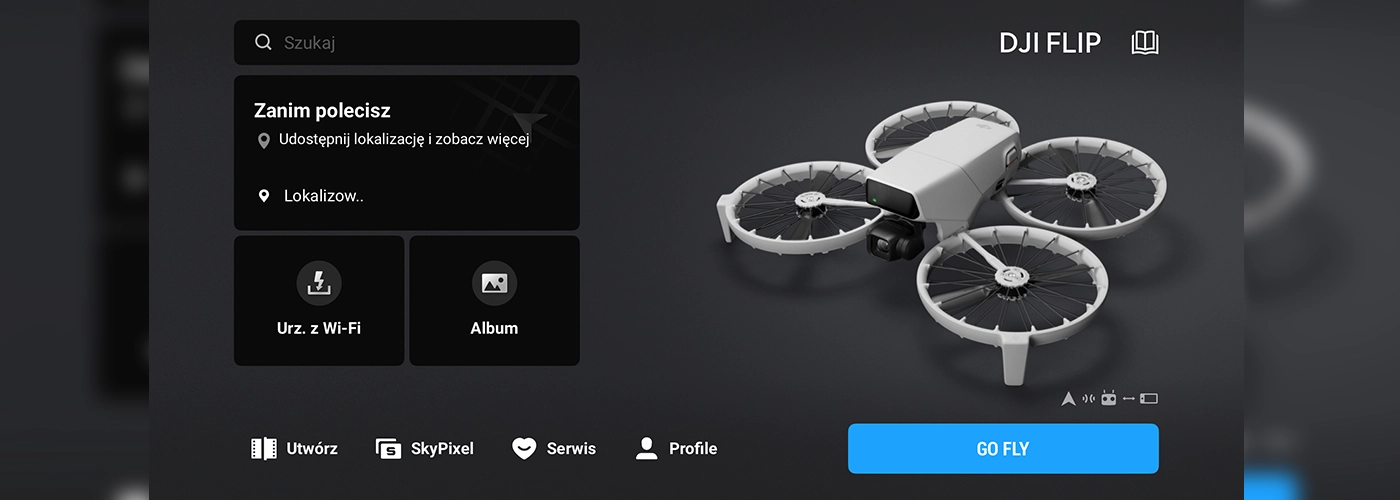
Install the required software. Users should install the drone manufacturer's app from Google Play or the Play Store. In some cases, you may need to download the app from the manufacturer's website rather than from the app stores installed on your phone. This is a crucial step—you can only access all the features through the right app. In the app store, you can search for the developer's name (e.g., DJI) or, if you know the app's name, find the app directly (e.g., DJI Fly).
Launch the app, and if necessary, log in or create an account. An account on the drone manufacturer's platform may be required to use the app or certain features of the app. Standard app permissions include GPS and storage, and often the microphone as well.
Connect to your phone – In most consumer drones, this is done via Wi-Fi or Bluetooth. When connecting the drone for the first time, you may need to enter additional information—details on this should be available in the manual or the app. If the phone is connected to the controller via a cable, use original or certified cables to ensure a stable connection.
Pair the drone with the app – Launch the app, select your drone model from the list, and follow the on-screen instructions. In some cases, the app will automatically detect the device; in others, you'll need to enter the information manually to connect the drone to your phone.
Perform calibration and testing – After connecting, you'll usually need to configure the drone as well. In the app, you can m.in. calibrate the compass or adjust the camera and flight settings. Before undertaking larger operations, it’s also a good idea to test the drone’s controls at a low altitude in a safe location, while monitoring readings such as altitude, speed, and battery status.
Remember the basics of safety – Always follow local laws and guidelines, do not fly over people, and avoid areas with significant signal interference. IIf you want to connect your drone to your phone in the most stable way, use the controller to establish the connection, which connects to a phone via a cable or using a dedicated Wi-Fi hotspot.
Configuring the drone using the appropriate app. How to Connect to a DJI Drone via DJI Fly?
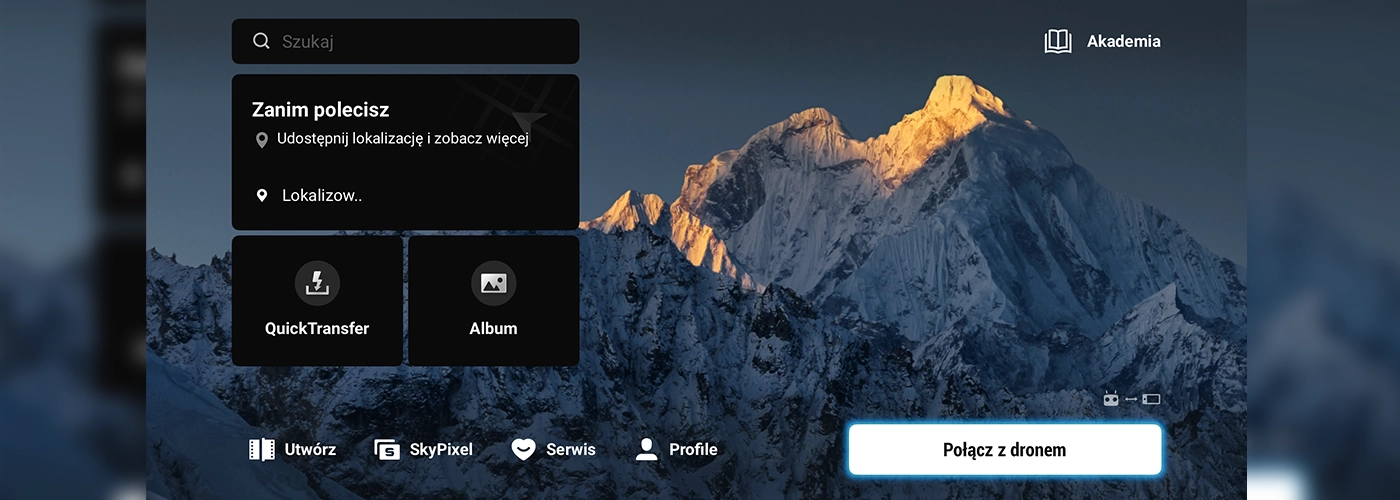
If you have drone DJI, The process is simple and very well documented. How to connect a drone to a phone when using devices from this manufacturer?
DJI Fly App Download or another app compatible with your model from Google Play or the App Store.DJI Fly is compatible with most drones DJI – however, some models, especially older or professional ones, may require different apps, such as DJI GO 4.
Connect your phone to the controller using a USB cable, or connect via Wi-Fi, if the drone supports it. Please remember to use original or certified cables. Some models can be operated using just the controller, without needing to connect to a smartphone—but even then, it’s a good idea to connect the drone to your phone to take advantage of additional features DJI Fly.
Launch the app and follow the connection steps. The drone should be detected automatically, but in some cases, additional steps are required—these will be described on the smartphone screen. Although creating an account is not technically required, users who are not logged in are subject to fairly significant restrictions, which apply to m.in. flight altitude. Therefore, when setting up your drone, it's a good idea to register on the DJI platform right away or log in to your account.
Once the drone is connected, you can configure the camera settings, altitude limits, flight modes, and safety options. Advanced models offer additional parameters.
Connecting a Third-Party Drone. Wi-Fi, Mobile Connectivity, and GPS – Key Information
Depending on the drone manufacturer, the connection process may vary slightly. The key difference is the method of communication. We've identified four main options here:
Wi-Fi – typical especially for lower-priced models and compact drones; this is a convenient solution, but you may encounter signal interference and range limitations;
Bluetooth – used primarily for simple pairing and the transmission of basic data;
Communication via the controller – the best solution for a stable signal and greater range;
mobile communications and cellular networks – It is not common in consumer drones, but in some professional models it supports data transmission.
Details regarding the application and connection should be included in the manufacturer's instructions. In the field of communications, almost everyone drone It also uses GPS—which makes route planning and flight control very easy.
How to check if the connection is working properly? Drone Control Test
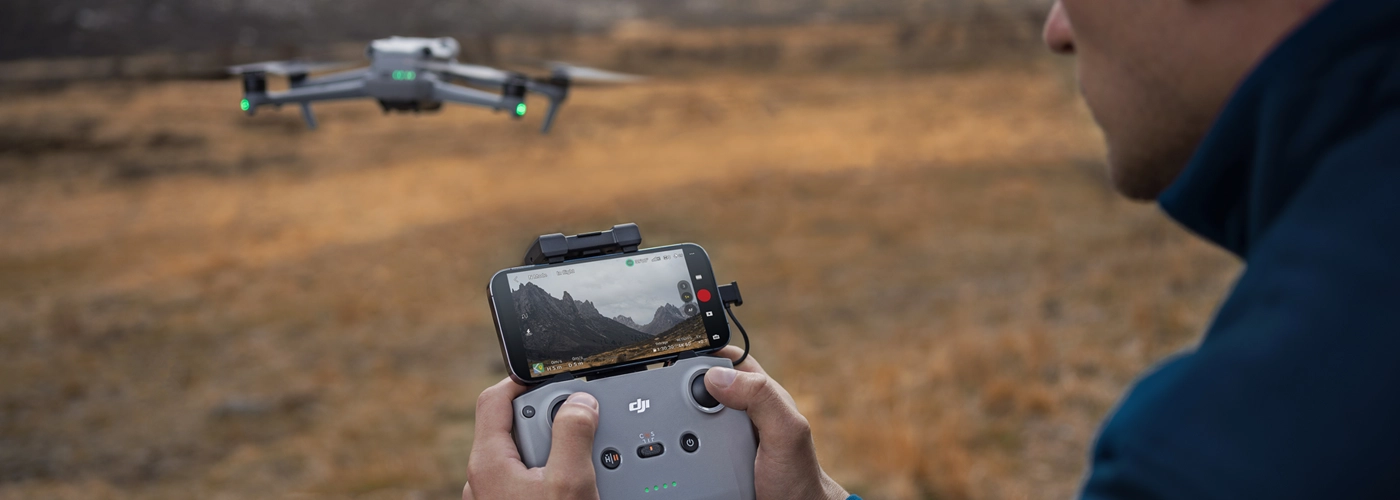
After connecting the drone to your phone it’s always a good idea to run a few quick tests, that will allow us ensure that everything is working properly. Check to see if the app displays real-time camera footage and key flight data (altitude, speed, battery level). Perform a test flight at a low altitude and check the controls—how they respond to commands, their responsiveness, and stability. It's also a good idea to check the GPS and the "Return Home" feature. Pay close attention to the signal: if you experience sudden drops or interruptions in the signal, try a different location or connection mode. This is also a good time to familiarize yourself with the features of the software provided by the drone manufacturer—drone apps may offer, for example, the ability to edit videos and photos directly on your phone.
DJI, and other brands' drones—check out our selection!
If you're looking for reliable equipment or want to compare models, check out the selection at MegaDron.pl. Our product line includes many models from various manufacturers, including DJI – m.in. DJI Neo 2, one of the latest models from this popular company. Depending on your budget, you can choose a compact model or a more advanced set that includes a controller and additional accessories. We invite you to shop with us!
FAQ – Quick Questions and Answers
How to Connect a Drone to Your Phone?
Most often through the manufacturer's app, using Wi-Fi, Bluetooth, or a connection via the controller. Just install the app, turn on the drone, and follow the on-screen instructions.
Do you need Wi-Fi to connect a drone to a phone??
In many models, yes—Wi-Fi is used to transmit video and data. In more advanced drones, a more stable connection is provided by a controller connected to the phone via a cable.
How to connect the DJI drone to your phone?
Install the DJI Fly app (or another dedicated app), connect your phone to the controller or connect via Wi-Fi, and pair the drone in the app.
Why won't the drone connect to the app??
The most common causes are an outdated app, lack of permissions (GPS, storage), Wi-Fi signal interference, or the use of an uncertified cable.
How to Check If the Connection to the Drone Is Working Properly?
Once connected, the app should display the camera feed, flight data, and the GPS signal. It's a good idea to do a short test flight at low altitude.