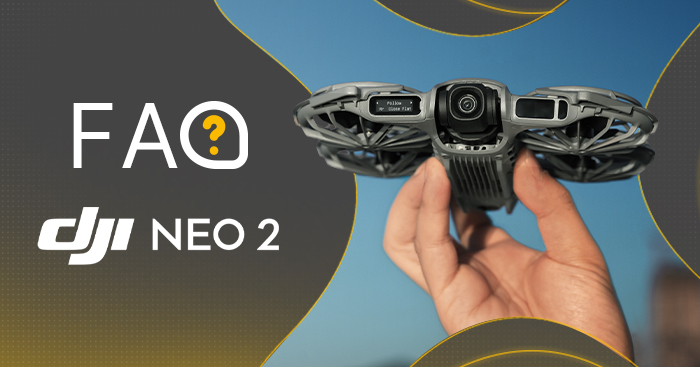
FAQ DJI Neo 2 - frequently asked questions and answers
What are the main improvements in the " DJI " Neo 2 model compared to the " DJI " Neo??
DJI Neo 2 introduces a number of improvements covering the video system, the camera, video transmission, and smart features. The most important improvements include:
1. New vision system and forward-facing LiDAR sensor: Thanks to the new omnidirectional obstacle detection feature [1] DJI, the Neo 2 can detect and avoid objects in front of and to the sides of the drone, allowing even novice users to fly with ease, stability, and confidence. The Neo 2 also offers a more versatile flight experience [2] with improved hovering and more precise positioning compared to the Neo, making it easier to navigate challenging environments such as indoors, around buildings, over water, or on snow.
2. Improved image quality: The Neo 2 is equipped with a 1/2-inch CMOS sensor with a resolution of 12 MP and an f/2.2 aperture, as well as a powerful image processor, which allows for clear, noise-free recordings. The drone can record video in 4K/60 FPS, 4K/100 FPS in slow-motion mode [3], and in 2.7K portrait mode—all footage is stabilized by a 2-axis gimbalal.
3. New built-in screen, start button, and flight mode switch.
4. New smart features include, among others, gesture control [4], Return to Palm [4], SelfieShot, Dolly Zoom, MasterShots, and Cycling Follow.
5. Internal storage increased to 49 GB.
Footnotes:
*1. The omnidirectional obstacle detection system enhances flight safety only under specific conditions and is not a substitute for the pilot's own situational awareness and control. While flying, always pay attention to your surroundings and the warnings in the DJI Fly app, and be responsible for maintaining control of the drone at all times. The optimal height range for positioning the vision system is between 0.5 and 10 m when using the system in the absence of a GNSS signal. Vision-based positioning performance may deteriorate when flying outside this range. Fly safely. The vision system may not function properly when the drone is flying over water, which may prevent it from actively avoiding the water's surface during landing. Operators should maintain control of the drone at all times, make operational decisions based on an assessment of the surroundings, and avoid relying solely on the vision system. The vision system is unable to detect certain objects or surfaces, including: large wire-frame structures (e.g., tower cranes, high-voltage poles, high-voltage power lines, suspension bridges); surfaces with no texture or sparse texture; surfaces with repetitive, identical patterns or textures (e.g., small tiles of the same color); single-color surfaces (e.g., pure black, pure white, pure red, pure green); highly reflective or mirror-like surfaces (e.g., ice, traffic signs); water or transparent surfaces; surfaces of moving objects (e.g., above a moving crowd, above swaying bushes or grass); moving obstacles (e.g., people walking, moving vehicles); scenes with sudden changes in lighting; surfaces that are extremely dark (e.g., below 1 lux) or extremely bright (e.g., above 100,000 lux); materials with strong infrared absorption or reflection properties (e.g., mirrors, glass, traffic signs, asphalt); small obstacles (e.g., fences, branches, power lines); and thin poles or small vertical objects (e.g., utility poles, streetlights). Do not obstruct or interfere with the operation of the video system in any way. Make sure all lenses are clean and free of dirt and scratches. After being stored for an extended period, the drone may need to have its vision system cameras calibrated—a corresponding message will appear in the DJI Fly app, and the process will run automatically. Do not fly in rain, fog, or when visibility is less than 100 meters. Before you start, check the condition of the glass surfaces on the sensors—remove any protective film, stickers, or other obstructions. If there are water droplets, fingerprints, or smudges, clean the glass with a soft, lint-free cloth. Do not use alcohol or other organic solvents. If the glass is loose, cracked, scratched, or worn, contact an authorized service center. For detailed information, please refer to the user manual.
*2. "Versatile flight" refers to the DJI Neo 2's ability to fly both indoors and outdoors, with significantly better performance compared to the DJI Neo—especially when flying over water or snow. Always comply with local laws and regulations, certification requirements, and airspace usage rules. Before taking off, make sure you understand the applicable regulations and have obtained all necessary permits. Flight performance may be impaired if the drone flies near solid-colored, transparent, or poorly textured surfaces in conditions of weak GNSS signal strength. Always fly carefully in a well-lit area. When flying over water, maintain an altitude of at least 1 meter to ensure safety. For more information, see the user manual.
*3. 4K/100 fps slow-motion video recording is supported only when using a remote controller or motion controller.
*4. When using gesture controls, please observe the following conditions and precautions: make sure the area is safe and free of people, animals, or vehicles in motion. Do not use gesture control in areas where there are small or thin objects (e.g., branches, electrical wires), transparent objects (e.g., glass or water), or single-color surfaces (e.g., white walls). This feature should only be used under appropriate lighting conditions—gesture control does not work when the light level is below 5 lux or above 100,000 lux. Gesture control is supported only in Spotlight or Follow modes and is not available when using a remote or motion controller. When using this feature, keep the drone about 2–5 m away from the operator and keep your fingers fully extended. Gesture control does not work with thick gloves or mittens, and the person making the gestures must be fully visible in the frame, without any obstructions. When using the Return to Palm feature, maintain a horizontal distance of 2–5 m between the drone and your hand, and a vertical distance not exceeding 2 m.. If the feature doesn't respond when you're close to it, reposition the drone using gesture controls or move away to avoid blind spots in the field of view, and then try again. To recall the drone by raising one hand, hold it no more than 10 m horizontally from your arm; make sure your arm is fully extended, and do not raise both hands at the same time, as this will prevent the drone from returning.
What is the certification level for the DJI Neo 2 in Europe??
DJI The Neo 2 has been awarded a C0 certification by the European Union Agency for. European Aviation Safety Agency (EASA).
Is the DJI Neo 2 waterproof??
No. Avoid exposing the device to water while using it, as this may damage it.
If it starts to rain during the flight, return and land as soon as possible, and wait until the drone is completely dry, both inside and out, before using it again.
Who is the DJI Neo 2 best suited for??
DJI The Neo 2 is a drone designed for vlogging—perfect for capturing everyday moments, leisure time, and family moments.
If you're looking for a portable drone that lets you instantly capture your travels, camping trips, runs, bike rides, skateboarding, hikes, or moments with your kids, the DJI Neo 2 is an excellent choice.
*DJI Neo 2 is intended for users who are at least 16 years old.
What control methods does the DJI Neo 2 support??
Hand control [1], gesture control [2], mobile app control [3], voice control via phone [4], and RC controller control [5].
1. When using the palm takeoff and landing features, follow these guidelines: operate in as windless an environment as possible; hold your hand horizontally and still, avoiding contact between your fingers and the propellers to prevent injury; Do not grab the drone while it is in flight.
2. When using gesture controls, please observe the following conditions and precautions: make sure the area is safe and free of people, animals, or vehicles in motion. Do not use gesture control in areas where there are small or thin objects (e.g., branches, electrical wires), transparent objects (e.g., glass or water), or single-color surfaces (e.g., white walls). This feature should only be used under appropriate lighting conditions—gesture control does not work when the light level is below 5 lux or above 100,000 lux. Gesture control is supported only in Spotlight or Follow modes and is not available when using a remote or motion controller. When using this feature, keep the drone about 2–5 m away from the operator and keep your fingers fully extended. Gesture control does not work with thick gloves or mittens, and the person making the gestures must be fully visible in the frame, without any obstructions. When using the Return to Palm feature, maintain a horizontal distance of 2–5 m between the drone and your hand, and a vertical distance not exceeding 2 m.. If the feature doesn't respond when you're close to it, reposition the drone using gesture controls or move away to avoid blind spots in the field of view, and then try again. To recall the drone by raising one hand, hold it no more than 10 m horizontally from your arm; make sure your arm is fully extended, and do not raise both hands at the same time, as this will prevent the drone from returning.
3. Requires connecting the DJI Neo 2 to your phone via Wi-Fi. The virtual joysticks in the app interface are used only to fine-tune the drone's position while recording or to control its return. They do not provide the same control experience as a traditional remote control. To achieve professional flight control, you can use a standard controller DJI. To ensure flight safety when controlling the drone via a mobile app, the drone's altitude is limited to 60 m.
4. It supports only English and Mandarin. Requires connecting the DJI Neo 2 to your phone via Wi-Fi.
5. Requires the use of the DJI Neo 2 Digital Transceiver, along with the appropriate controller and goggles. They can be purchased as part of specific sets or as individual items.
What smart recording modes does the DJI Neo 2 offer??
DJI The Neo 2 offers a wide range of smart recording modes.
When taking off and landing on a hand and controlling the drone via the app, the following modes are available: Follow, Cycling Follow, SelfieShot, Dolly Zoom, MasterShots, Dronie, Circle, Rocket, Spotlight, Helix, and Boomerang.
If you're controlling the drone using standard control equipment, the DJI Neo 2 supports multiple QuickShots modes.
*After activating the Neo 2 at DJI and updating it to the latest firmware version, the drone has the Follow, SelfieShot, Dronie, Circle, and Rocket modes enabled by default. You can add other features and arrange them as you like in Custom mode using the DJI Fly app.
What precautions should you take when using gesture controls on the DJI Neo 2??
When using gesture control, observe the following conditions and precautions: make sure the area is safe and free of people, animals, and vehicles. Do not use gesture control in areas where there are small or thin objects (e.g., branches, electrical wires), transparent objects (e.g., glass or water), or solid-colored surfaces (e.g., white walls). This feature should only be used under appropriate lighting conditions—gesture control does not work when the light level is below 5 lux or above 100,000 lux. Gesture control is supported only in Spotlight or Follow modes and is not available when using a remote or motion controller. When using this feature, keep the drone about 2–5 m away from the operator and keep your fingers fully extended. Gesture control does not work with thick gloves or mittens, and the person making the gestures must be fully visible in the frame, without any obstructions. When using the Return to Palm feature, maintain a horizontal distance of 2–5 m between the drone and your hand, and a vertical distance not exceeding 2 m.. If the feature doesn't respond when you're close to it, reposition the drone using gesture controls or move away to avoid blind spots in the field of view, and then try again. To recall the drone by raising one hand, hold it no more than 10 m horizontally from your arm; make sure your arm is fully extended, and do not raise both hands at the same time, as this will prevent the drone from returning.
What precautions should you take when using the SelfieShot feature on the DJI Neo 2??
1. Number of subjects supported: When SelfieShot mode is enabled, the camera can automatically frame up to 30 people. If there are more people in the shot, the framing accuracy may decrease.
2. Distance between people: People standing next to each other should be no more than one body width apart. People standing farther away may not be included in the frame.
3. Flight restrictions: If the flight path is blocked, the Neo 2 may not be able to reach the planned shot and will take the shot from the closest possible position. For example, in small, enclosed spaces, the available headroom and the distance needed to take additional shots may be limited.
4. Object motion: Once the launch begins, the flight path remains constant. To maintain proper framing and a centered composition, the person should remain about 1 m away from their original position.
Which control devices are compatible with the DJI Neo 2??
DJI RC 2, DJI RC-N3 Remote Controller, DJI RC-N2 Remote Controller, DJI RC Motion 3, and DJI FPV Remote Controller 3.
*When using the DJI RC Motion 3 or DJI FPV Remote Controller 3, only the DJI Goggles 3 and DJI Goggles N3 are supported..
Which goggles are compatible with the DJI Neo 2??
DJI Goggles 3 and DJI Goggles N3.
*When using the DJI RC Motion 3 or DJI FPV Remote Controller 3, only the DJI Goggles 3 and DJI Goggles N3 are supported..
How intuitive is hand control on the DJI Neo 2??
Controlling it with your hand is extremely simple. Even people with no prior experience with drones can quickly learn the basics.
DJI The Neo 2 can take off from and land on your hand, and it can intelligently record video by identifying objects using its algorithms—all without the need for a controller or any other additional devices.*
*Currently, only the "Follow People" feature is supported. It is not possible to track other objects.
Can the DJI Neo 2 reliably follow the user thanks to its smart tracking feature??
Once the DJI Neo 2 recognizes the user using computer vision algorithms, it will track the user's movements and maintain a constant speed, creating smooth, intelligently adjusted shots.
*The maximum tracking speed is 12 m/s.
Does the DJI Neo 2 support Manual control mode??
Manual mode is not currently supported. Stay tuned for official updates regarding its potential availability in the future.
Does the DJI Neo 2 support obstacle detection??
Yes. Thanks to its new multi-directional obstacle detection feature*, the Neo 2 can avoid obstacles while tracking objects in front of or to the sides of the drone, allowing even novice users to operate the drone with ease, stability, and complete confidence.
*The omnidirectional obstacle detection system enhances flight safety only under certain conditions and does not replace the pilot's own assessment of the situation or control of the aircraft. While flying, always pay attention to your surroundings and the warnings in the DJI Fly app, and be responsible for maintaining control of the drone at all times. The optimal height range for positioning the vision system is between 0.5 and 10 m when using the system in the absence of a GNSS signal. Vision-based positioning performance may deteriorate when flying outside this range. Fly safely. The vision system may not function properly when the drone is flying over water, which may prevent it from actively avoiding the water's surface during landing. Operators should maintain control of the drone at all times, make operational decisions based on an assessment of the surroundings, and avoid relying solely on the vision system. The vision system is unable to detect certain objects or surfaces, including: large wire-frame structures (e.g., tower cranes, high-voltage poles, high-voltage power lines, suspension bridges); surfaces with no texture or sparse texture; surfaces with repetitive, identical patterns or textures (e.g., small tiles of the same color); single-color surfaces (e.g., pure black, pure white, pure red, pure green); highly reflective or mirror-like surfaces (e.g., ice, traffic signs); water or transparent surfaces; surfaces of moving objects (e.g., above a moving crowd, above swaying bushes or grass); moving obstacles (e.g., people walking, moving vehicles); scenes with sudden changes in lighting; surfaces that are extremely dark (e.g., below 1 lux) or extremely bright (e.g., above 100,000 lux); materials with strong infrared absorption or reflection properties (e.g., mirrors, glass, traffic signs, asphalt); small obstacles (e.g., fences, branches, power lines); and thin poles or small vertical objects (e.g., utility poles, streetlights). Do not obstruct or interfere with the operation of the video system in any way. Make sure all lenses are clean and free of dirt and scratches. After being stored for an extended period, the drone may need to have its vision system cameras calibrated—a corresponding message will appear in the DJI Fly app, and the process will run automatically. Do not fly in rain, fog, or when visibility is less than 100 meters. Before you start, check the condition of the glass surfaces on the sensors—remove any protective film, stickers, or other obstructions. If there are water droplets, fingerprints, or smudges, clean the glass with a soft, lint-free cloth. Do not use alcohol or other organic solvents. If the glass is loose, cracked, scratched, or worn, contact an authorized service center. For detailed information, please refer to the user manual.
How does the DJI Neo 2 perform??
DJI The Neo 2 offers 4K* Ultra HD quality that meets your everyday needs for recording and sharing videos.
When recording video DJI, the Neo 2 supports 4K/60 FPS and 4K/100 FPS**, making it perfect for creating content for social media.
DJI The Neo 2 also lets you take 12 MP photos. What's more, if you use the app to control the camera, it automatically makes sure everyone fits in the group photo, which eliminates the need to find someone to take the picture.
*The maximum resolution in portrait recording mode is 2.7K.
**4K/100 fps slow-motion video recording is supported only when using a remote controller or motion controller**.
What image stabilization technologies does the DJI Neo 2 support??
DJI Neo 2 supports RockSteady technology and the option to disable stabilization*.
*The stabilization switch (On/Off) is available only after pairing with the goggles. After turning off stabilization, the recorded footage can be stabilized in post-production using Gyroflow software.
Does the DJI Neo 2 support Gyroflow offline stabilization??
Yes. The stabilization switch (On/Off) is available only after pairing with the goggles. After turning off stabilization, the recorded footage can be stabilized in post-production using Gyroflow software.
How to transfer files from a DJI Neo 2 to a phone or computer?
QuickTransfer:
DJI Neo 2 supports Wi-Fi connectivity with your phone and allows you to view and transfer files using the " DJI Fly" app. In this case, the maximum download speed is 80 MB/s.*
To ensure optimal transmission performance, keep the drone and your phone within 2 meters of each other, with no obstacles between them.
Transferring files to a computer:
Connect your DJI Neo 2 to your computer using a data cable to view and transfer your content. To take advantage of this feature, you don't need to turn on the drone.
*Measured in a laboratory environment with low levels of interference, in countries/regions where the 2.4 GHz and 5.8 GHz frequencies are available. Download speeds may vary depending on actual conditions.
What features are available when you connect the DJI Neo 2 to the DJI Fly app??
After connecting the DJI Neo 2 to the DJI Fly app, you can view a live feed from the drone, adjust recording settings, and quickly transfer footage to your phone.
When using the Neo 2 with the DJI Fly app or with the RC-N3/RC-N2 controller, you can use your phone's microphone or the DJI Mic 2 to record audio.DJI Neo 2 also supports voice control when using the DJI Fly app.
After importing content from DJI Neo 2 into the app, you can apply Glamour Effects to it or quickly edit the video.
What languages does the Neo 2 DJI support for voice control??
English and Mandarin.
The language used depends on the system language of the connected phone (English or Chinese).
What are the charging options for the DJI Neo 2?? How long does it take to fully charge it??
There are two ways to charge the batteries for the DJI Neo: via the hub or directly from the drone.
1. When using a bidirectional charging hub (maximum power: 65 W), it takes about 68 minutes to charge three batteries simultaneously from 0% to 100%
2. It takes about 70 minutes to directly charge the battery inside the drone (maximum power: 15 W) (from 0% to 100%).
*The number of batteries that can be charged at the same time depends on the power rating of the charger being used. Using a charger with a power output of more than 45 W allows you to charge three batteries. Using a charger with a power rating of 30 W to 45 W allows you to charge only two batteries at a time. Using a charger with a power rating below 30 W will result in the batteries being charged sequentially—starting with the one with the highest charge level and ending with the one with the lowest. Check the charging protocols supported by the charger.
The charging time was measured in a test environment at a temperature of 25°C (77°F). Actual charging time may be longer due to higher ambient temperatures or differences in mains voltage between regions.
What features does the bidirectional charging hub for the DJI Neo 2 offer??
- Charging: The hub supports PD fast charging via USB and can charge three batteries at the same time.
- Storage: The hub can hold three batteries at the same time, making them easier to transport and use.
- Power Bank: If the hub contains at least one battery, you can use it as a power bank to charge your phone, tablet, or other devices via the USB-C port.
Which DJI chargers are recommended for charging the DJI Neo 2??
When charging via a bidirectional hub, we recommend using the DJI 65W Portable Charger.
If you're charging the battery inside the drone, you can use the DJI 65W Portable Charger or the DJI 30W USB-C Charger.
When to Install and Use a Digital Transmitter-Receiver for the DJI Neo 2, and When It's Better to Avoid It?
When flying a drone using a controller or goggles, install the DJI Neo 2 Digital Transceiver to ensure stable, low-latency video transmission.
When using only hand controls, remove the DJI Neo 2 Digital Transceiver to reduce the drone's weight and extend its flight time.
*Detailed instructions for the installation, removal, and use of the DJI Neo 2 Digital Transceiver can be found in the user manual.
What is the video transmission range of the DJI Neo 2??
Maximum video transmission range over Wi-Fi: 500 m*
Maximum O4 video transmission range: 10 km**
*The measurement was taken in an open area without interference. The actual video transmission range may vary depending on environmental conditions and the performance of the mobile device. You should base your decisions on the user's actual experience.
**A video transmission range of up to 10 km can be achieved only in FCC-compliant mode**. The measurement was performed in an open, interference-free environment using a remote controller or goggles, showing the maximum one-way communication range under test conditions for each standard. The actual range of video transmission during flight is limited by the drone's maximum flight distance. Always pay attention to RTH messages displayed in the live view during flight.


